
Combine shapes and mask images
Use Union, Subtract, Intersect, Exclude, Divide and editable masks.
Read as MarkdownChoose a boolean operation
Select compatible vector shapes or drawings and open the appearance controls or context menu.
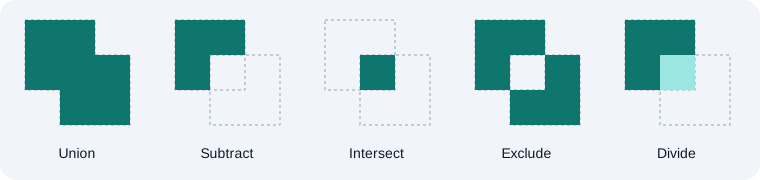
| Operation | Result | Example |
|---|---|---|
| Union | Combined filled area | Join circles into a cloud |
| Subtract | Front shapes cut the backmost shape | Cut a hole in a badge |
| Intersect | Only overlapping area | Keep a shared lens shape |
| Exclude | Non-overlapping area | Make a ring from overlapping shapes |
| Divide | Partition the backmost shape | Split a shape into regions |
Subtract and Divide depend on stacking order. Results use the backmost operand's paint. If the result looks reversed, check which shape is behind the others.
Edit the original shapes
Boolean groups keep their source shapes. Double-click the group or choose Edit Sources, edit a source, then choose Finish Editing or press Escape. Release Boolean Group restores the editable originals.
Create an image mask
Select one image and vector sources, then choose Create Mask. The mask controls where the image is visible without changing the source image or crop. Opacity and gradient transparency affect the mask.
Use Edit Mask to adjust the image and mask sources. Finish Editing returns to the masked result; Release Mask separates the originals.
Use text as geometry
Convert to Vector outlines text for boolean operations and masks. Text masks are outlined when created. Outlined text cannot be edited as text or extracted by plain-text export.
Unavailable fonts, missing glyphs, unsupported paint or excessive geometry can prevent conversion. Do not assume a failed conversion substituted a font. Undo restores editable text.